Followers

Popular Posts

Showing posts with label Error code. Show all posts

Wednesday, April 6, 2011

How to solve error C000 on Canon Pixma MX870


How to solve error C000 on Canon Pixma MX870

Solution 1:


  1. Switch off the printer

  2. Disconnect the power cable

  3. Open door:


  4. Remove the orange protective tape (A) and remove the white polystyrene (protective equipment) (B).


  5. Verify in the printer there is no protective equipment:


  6. Close the door.

  7. Connect the cable and switch on.


Solution 2 :

- Check for any foreign body in the printer: piece of paper, paper clip...

- Check for any paper jams.


Solution 3:

- This error code C000 could be made by an empty cartridge: check for this.
Read More

Monday, February 28, 2011

How to Reset ink counter on Canon MP198


A. Entering into service mode


  • Turn off the printer off is the printer power on. And remove the printer USB cable from your computer..
  • While the printer is OFF, press and hold the Start/Stop button on the some other canon printers model press Resume/Cancel button.
  • While still holding Start/Stop button or Resume/Cancel button, press and hold the POWER button.
  • When the POWER LED (green light) lit, release the Start/Stop or resume/cancel button (still holding the POWER button).
  • Still holding the power button,   Press the Start/Stop button or resume/cancel button TWICE then Release the POWER button. Wait until LCD printer to display 0 (zero) number
  • After the display is 0, attach the printer UDB cable to your computer, its will detected new device installed (its normal), now go to resetting steps
B. Resetting Ink counter on the Printer

  • Run “service_tool 1050.exe”. you can download the service tool software from this link: ServiceTool_1050.zip 
  • Confirm detected USB-port numbers on USB port column.
  • Click “Main button” on Clear ink counter section. Make sure there are papers in the paper feed because the printer will print after the process is complete.
  • Click “platen button” on the “Clear ink counter” section. The printer will print again.
  • Turn off the printer and then turn the printer on.


This work too with:  MP258, MP276, MP496, MP558, MP568, and MP648

Read More

Tuesday, February 15, 2011

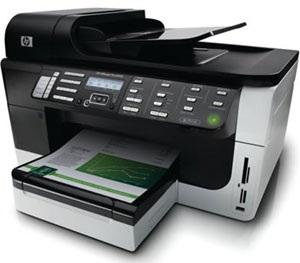
Error 0x61011beb on HP Officejet and Photosmart printers


Solution 1:

  • With the printer power on, disconnect the USB cable from the computer.
  • Remove the ink cartridges
  • Unplug the power cord. Wait for at least 1 minute. Plug the unit back in (press the power button if necessary)
  • Wait for the "Insert Cartridges" message. Reinstall the cartridges

    Close the product doors
  • If you receive a recalibration message, allow the printer to complete this task
  • Reconnect the USB cable
  • Try your print job again


Solution 2:

  • Plug it directly into the wall, rather than into a UPS.
  • Verify that the unit is switched on. Disconnect the USB/Ethernet cable from the All-in-One and also disconnect power cable from All-in-One and also from wall outlet.
  • Wait 30 seconds.
  • Plug in the power cable to All-in-One and also to wall outlet.
  • Check for the functionality.


Solution 3:

  • Unplug the power cable from printer when the printer is powered on and wait for 20 seconds.
  • Then, press and hold # and 6 while plugging in the power cord.
  • Continue holding until it displays Semi Full Reset message in the front panel of the All-in-One


Read More